 Sebastian Schkudlara
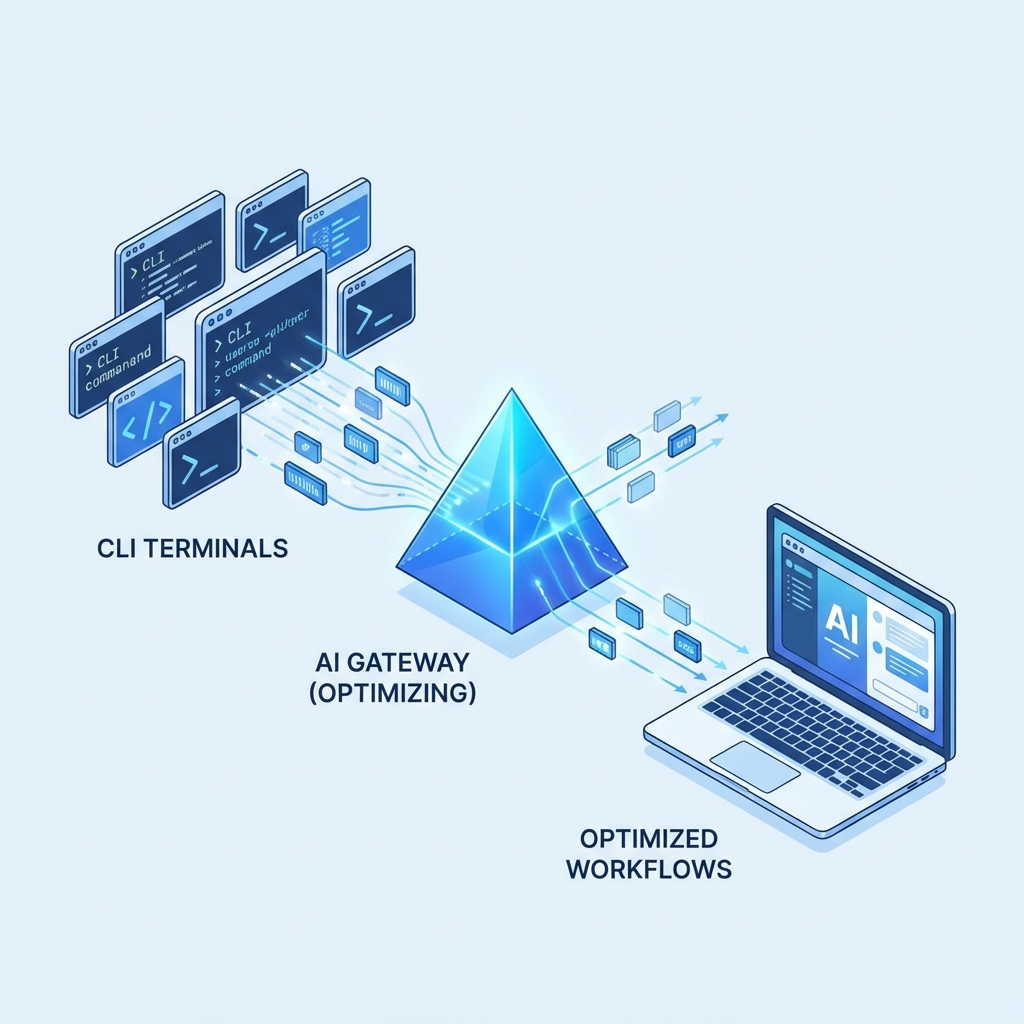
To build the ultimate AI development environment, you need three things:
- A Private Engine (for sensitive data).
- A Power Engine (for complex reasoning).
- A Unified Interface (to use them both).
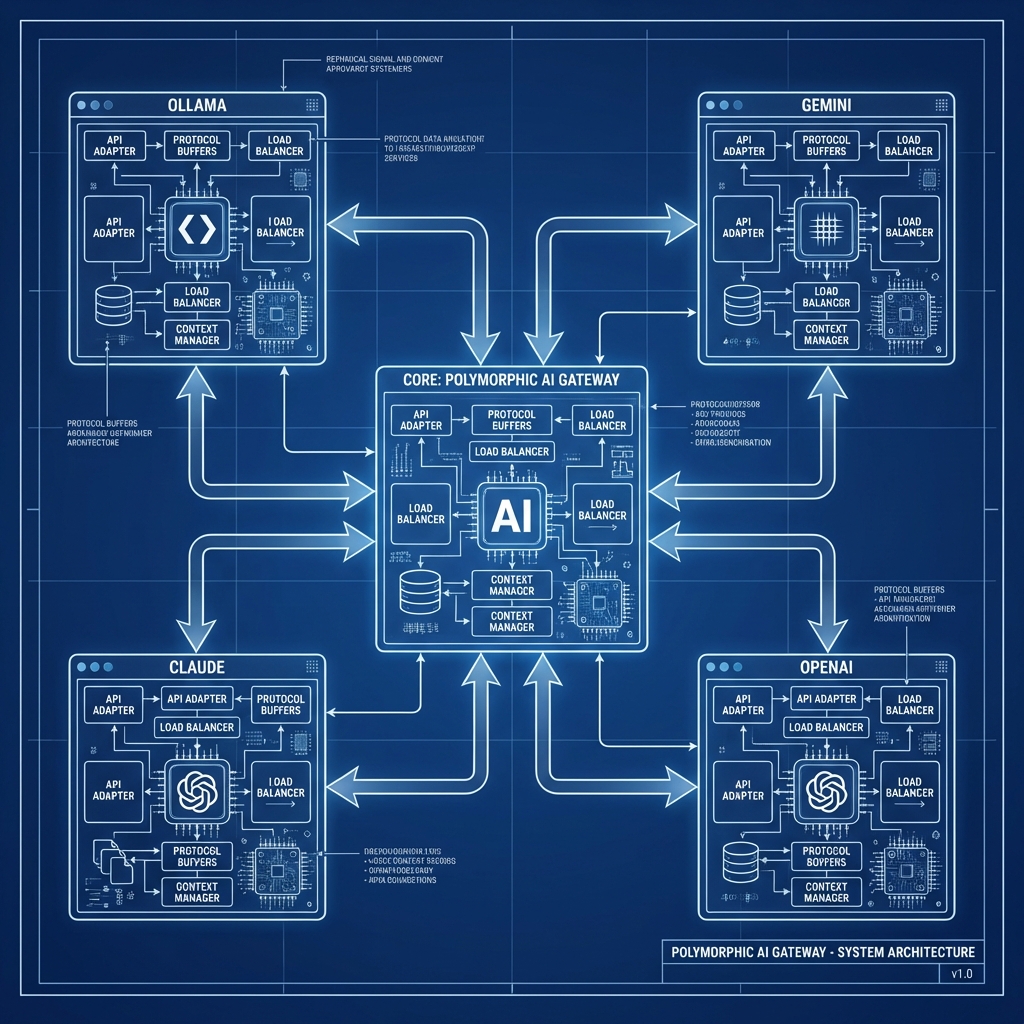
In this guide, we will use switchAILocal to wire up Ollama (Private) and Gemini/Claude (Power) into a single, seamless workstation.
Step 1: The Foundation (switchAILocal)
First, we need the router that will manage traffic between your apps and your models.
git clone https://github.com/traylinx/switchAILocal.git
cd switchAILocal
./ail.sh start
This starts a server at http://localhost:18080 that is ready to accept traffic.
Step 2: The Private Layer (Ollama)
For tasks involving private code or personal data, nothing beats a local model.
- Install Ollama from ollama.com.
- Run
ollama servein a terminal. - Pull a model:
ollama pull llama3.
switchAILocal Auto-Discovery:
You don’t need to configure anything. The gateway scans your ports, finds Ollama, and instantly registers ollama:llama3 as an available model.
Check it: curl http://localhost:18080/v1/models -> You’ll see ollama:llama3.
Step 3: The Power Layer (Keyless CLIs)
For heavy lifting, we’ll connect Google and Anthropic models. But instead of generating insecure API keys, we’ll use their secure CLIs.
- Gemini: Install the Google Cloud SDK and run
gcloud auth application-default login. - Claude: Install the Anthropic CLI and run
anthropic login.
The “Process Wrapper” Magic:
switchAILocal detects these binaries in your system path. It automatically creates providers like geminicli:gemini-pro. When you use them, it “wraps” the CLI command, using your existing system-level authentication.
Result: High-power cloud AI with zero API keys stored in your gateway config.
Step 4: The Interface (Your IDE)
Now, bring it all together. Open Cursor, VS Code, or Aider.
- Base URL:
http://localhost:18080/v1 - API Key:
sk-any(Authentication is handled locally).
The Result: A “Hybrid” Workflow
You now have a setup that is the envy of power users everywhere:
- Privacy when you need it: Select
ollama:llama3. - Power when you want it: Select
geminicli:gemini-pro. - No friction: Never change windows. Never copy-paste an API key again.
 One Gateway, Every Model: Finally, a Universal Adapter for AI